SmartCompany can be configured to send you email notifications whenever important events occur.
In this release you can choose to be notified whenever the following occurs:
A new Account, Contact, Project, Opportunity, or Order is created
You are invited to an Event (calendar item)
You are assigned a Task
Notifications are turned off by default. To turn them on, go to the Setup tab, then click
My Preferences and check off events of interest in the Email Notifications
section.
Each notification will be sent from notifications@smartcompany.net. If you
use a spam blocker, be sure to add this sender to your safe senders list or you may not
receive your notifications.
To make this feature even more useful, each notification contains a link to the SmartCompany
item that triggered it. For example, if you are assigned a new task, the notification will
contain a link that opens the task in SmartCompany, with no need for you to even log in.
Because of this, do not forward your notifications to other people because it will
give them open access to your SmartCompany database.
Opportunity Hotlists
When editing an opportunity you can click a checkbox to add it to your hotlist. The hotlist
is a collection of special opportunities you'd like to track for whatever reason. Each person has their own
hotlist visible only to them, and any given opportunity can appear on any number of hotlists.
Opportunities on your hotlist will have a small flame ()
next to them when viewed in lists of search results. You can also access your hotlist from the Dashboard - see the next item.
New Dashboard Reportlets
We've added three new dashboard reportlets: 10 Most Negelected Opportunities,
My 10 Most Neglected Opportunities and My Opportunity Hotlist.
The first two show the 10 active opportunties with the oldest Last Touched dates, while the last
one shows the active opportunities you have put on your hotlist.
Version 5.0 Release Notes
Dashboard
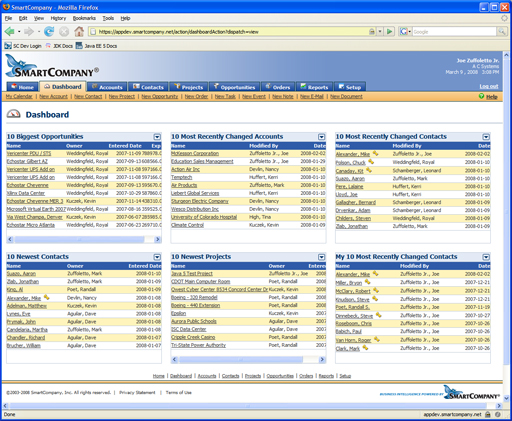
The Dashboard is a new tab that appears next to the Home tab. It contains 6 fixed-size panes that
display within themselves miniature reports, called "reportlets." Each dashboard pane has a menu
from which you select the reportlet to fill that pane. SmartCompany remembers your choices until
you change them, so once you define your custom dashboard layout it will always be available to
you just by clicking the Dashboard tab.
Here is what the Dashboard looks like:
Reportlet examples include:
10 newest items of any type (account, contact, opportunity, etc.)
10 most recently changed items of any type
Top 10 Opportunities
Top 10 Orders
We'll be adding new reportlets on a continuous basis and welcome your feedback as to what reportlets
you'd like to see (send an email to our support address).
For security purposes, we have initially made the Dashboard available only to the SmartCompany administrators
in your company. The tab will not appear for any other users. It is up to the administrators to grant
Dashboard access to non-administrators. This is done by adding Dashboard access to any Roles you have defined for
your organization (go to Setup and then Roles to change this).
The Dashboard honors your roles and access privileges. For example, if you've defined a role
that's not allowed to see Opportunities, the Dashboard will hide all Opportunity-related reportlets from users
with that role.
Redesigned Input Screens
Based on customer feedback we have improved almost all our data input screens as follows:
Moved the Save/Cancel/etc. buttons to the left side so they're always visible
Moved all required fields to the top and before any other fields
Made the screens less cluttered and more readable
We will continue making these improvements to the rest of the application as well.
Data Backup Service
We now provide a monthly data backup service in which we email your data to you every month
in Microsoft Office Access format. This format preserves your data and relationships with
100% fidelity - far better than spreadsheets or text files. This means you can use the data
for in-house reporting as well as a backup. See our Products
and Pricing pages for more information.
Improved Browser Compatibility
SmartCompany now supports all leading browsers on all major computing platforms:
Internet Explorer 6.x and 7.x on Windows
Firefox 2.x on Windows, Mac OS X and Linux
Safari 3.x on Windows and Mac OS X
YTD Sales Reports Shortcut
We have expanded the shortcut buttons at the top of the Sales reports to include
Current Calendar YTD and Current Fiscal YTD. This means you can run a Current Fiscal YTD
report without having to define a custom report.
Hide Inactive Users in Events and Tasks
We have added a new User preference allowing you to disable the display of inactive users in the
lists of Event Attendees and Task Assignees. We have gone ahead and disabled inactive users for
all our customers - you can turn it back on again by going to Setup and then My Preferences.
Performance Enhancements
We have significantly upgraded our hardware and software so the entire application is slightly faster. Some
areas are MUCH faster - for example, List editing in the Setup area is nearly 1,000 times faster.
Version 4.5 Release Notes
Mass Change and Mass Delete
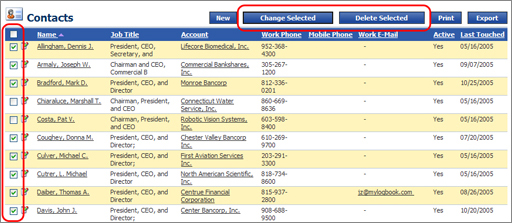
Easily change or delete multiple records in one operation. New checkboxes
down the left side of every list give you the ability to select multiple records and then
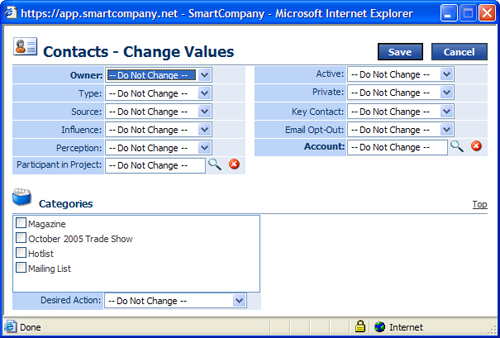
either delete them or apply changes to them all at once. For example, you can change the owner
of a group of accounts and opportunities from one salesperson to another, or assign a group
of accounts or contacts to the same set of categories. Mass delete and mass change are
initially available to administrators only, but you can grant one or both privileges to
anyone in your organization in the Setup area.
Improved Browser Compatibility
Improvements to our cross-browser scripting support result in 100% compatibility with
Internet Explorer AND Firefox 1.5, plus even better reliability and performance in
both browsers.
More Flexible Commission Splits
Commission splits can now be assigned to inactive users as well as active users. This
allows you to assign splits to channel partners who are not part of your organization or
your SmartCompany subscription.
Version 4.3 Release Notes
Minor changes and bug fixes to tasks, events, e-mails, and reports.
Version 4.2 Release Notes
Home Page Improvements
Day, 5-day Week, 7-day Week, and Month calendar range selections
Calendar now controls task selection
Tasks grouped by due date: Past Due, Today, Tomorrow, This Week, This Month, Next Month, Due in 2 Months, etc.
Ability to move tasks by mass changing due dates.
Additional information on task list day of week, status with percent complete.
Event list displays location
Full page tasks toggles display of completed/all tasks
Email Recipient Lookup Improvements
Master checkboxes for selecting/de-selecting all To, CC, or BCC
Search improvements
User preferences fro setting default email font type and size
My Organization view page shows number of turbo seats, user list shows if Turbo is activated.
Document merge controls on account, contact, project, opportunity, order view pages for interfacing with Toolbar to perform Word Merge
Version 4.1 Release Notes
SmartCompany 4.1 brings improved Microsoft® Outlook® integration, better marketing campaign management and much more!
What's New
Improved Microsoft® Outlook® Integration
Instantly copy contacts and calendar appointments from SmartCompany to Outlook! SmartCompany
uses the vCard and vCalendar formats to power data exchange between your SmartCompany database and Outlook.
Just click a button when viewing a contact or appointment and SmartCompany emails the vCard or vCalendar object to you, where you can open and save it to Outlook.
Marketing Campaigns
SmartCompany combines Projects with Leads to support Marketing Campaigns!
You can now import leads into new or existing Projects designated as Marketing campaigns. Once
you've created a campaign, you can click a button to send an email blast to every lead in the
campaign, and you can easily track the progression of leads within a campaign through your
sales and fulfilment cycles.
Here is a complete listing of SmartCompany 4.1's major new features:
New Pipeline by Participant Type Report and Pipeline by Participant Report
Activity reports show more information in a cleaner layout.
Version 4.0 Release Notes
SmartCompany 4.0 delivers over 150 new features, enhancements, and improvements that give your business more power to compete than ever!
Highlights include integrated email capabilities and dramatically improved lead management — plus dozens of new features specifically requested by customers like you. You designed it, we built it... and now we're proud to introduce your SmartCompany 4.0!
What's New
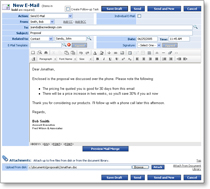
Integrated E-Mail
You can now compose and send e-mails from within SmartCompany! Using our powerful
e-mail editor, you can compose messages in HTML, rich text, or plain text formats — complete
with custom signatures, embedded graphics, and file attachments. E-mails
can be sent individually or in blasts, and SmartCompany automatically attaches copies of
your e-mails to the appropriate account, contact, project, opportunity, or order.
What's more, you can create and save e-mail templates into our new E-Mail Library, and you
can design your templates to automatically merge SmartCompany data into your messages for
that personalized touch!
Lead Management
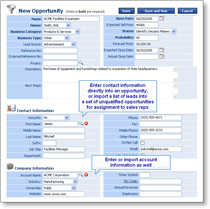
SmartCompany's Opportunity module has been expanded to support Lead Management!
You can import lists of leads from text files directly into the Opportunity module and then move
them through your sales cycle as they develop. Because of this, each opportunity now contains
data fields for contact and account information that you can import from a lead list or enter manually.
And, as before, you can link the opportunity to an account and/or contact if you are
selling to an existing customer. When you convert the opportunity to an order, SmartCompany gives you
the option to automatically create a new account and contact from the information you've entered if these
records don't exist already.
Here is a complete listing of SmartCompany 4.0's major new features:
You can compose and send emails from within SmartCompany. Emails can be attached to accounts, contacts, projects, opportunities, or orders.
The email editor supports HTML, rich text, and plain text so you can format your emails exactly the way you want.
You can merge data from SmartCompany into your emails, and you can create and save email templates that are available for everyone to use. These are stored in the Email Library, which is analogous to the Document Library.
Emails can be sent individually or in groups (i.e., email blasts). If you use an email template with merged data fields, SmartCompany automatically populates each email with the appropriate data, sends the message, and stores a copy with the associated entity in your database.
You can create and save an unlimited number of email signatures for your emails, then choose the signature you want for each message. You can also assign a default signature for every message.
When assigning a task to others, you can designate whether everyone shares the same copy of the task or whether separate copies are created for each assignee.
Added the Fax Number and Last Touched columns to the account list.
Added the Last Touched date column to the list of contacts within an account.
The Notes, Tasks, and Events lists within an account have been replaced with two new lists: Current Activity and Activity Log. Current Activity shows upcoming calendar events, incomplete tasks, and unsent emails for the account. Activity Log shows notes, past calendar events, completed tasks, and sent emails that are related to the account.
Added a Full Page button to the Activity Log. Clicking this button fills the page with the contents of the Activity Log for easier reading and review.
Added Show Related buttons to the Participant In, Current Activity, Activity Log, and Documents lists within an account. Clicking these buttons shows items related to every record the account is linked with, including contacts, opportunities, orders, etc. Clicking the button again shows items related to the account only.
Added the Last Touched date column to the contact list.
The Notes, Tasks, and Events lists within a contact have been replaced with two new lists: Current Activity and Activity Log. Current Activity shows upcoming calendar events, incomplete tasks, and unsent emails for the contact. Activity Log shows notes, past calendar events, completed tasks, and sent emails that are related to the contact.
Added a Full Page button to the Activity Log. Clicking this button fills the page with the contents of the Activity Log for easier reading and review.
Added Show Related buttons to the Participant In, Current Activity, Activity Log, and Documents lists within a contact. Clicking these buttons shows items related to every record the contact is linked with, including accounts, opportunities, orders, etc. Clicking the button again shows items related to the contact only.
The Notes, Tasks, and Events lists within a project have been replaced with two new lists: Current Activity and Activity Log. Current Activity shows upcoming calendar events, incomplete tasks, and unsent emails for the project. Activity Log shows notes, past calendar events, completed tasks, and sent emails that are related to the project.
Added a Full Page button to the Activity Log. Clicking this button fills the page with the contents of the Activity Log for easier reading and review.
Added Show Related buttons to the Current Activity, Activity Log, and Documents lists within a project. Clicking these buttons shows items related to every record the project is linked with, including accounts, opportunities, orders, etc. Clicking the button again shows items related to the project only.
The Opportunity module can now be used to track leads. You can import lists of leads from text files directly into the Opportunity module and then move them through your sales cycle as they develop. Because of this, each opportunity now contains data fields for contact and account information. You can import or enter this information directly into the opportunity, or you can link the opportunity to an account and/or contact if you are selling to an existing customer. When you convert the opportunity to an order, SmartCompany gives you the option to automatically create a new account and contact from the information you've entered if these records don't exist already.
Replaced Open Date with Last Touched date in the Opportunity list.
Expanded the Age column to include a graphical representation of an opportunity's age. A green circle ( ) represents opportunities less than 30 days old; a yellow square ( ) represents 30 to 59 days; and a red triangle ( ) represents 60 days or more. These intervals can be adjusted by your SmartCompany administrator.
When converting an opportunity to an order, SmartCompany now gives you the following options:
Choose a status for the closed opportunity
Choose a status for the new order
Specify the opportunity close date and order open date
Create account and contact records using the information you entered directly for these items
Copy participants and locations from the opportunity to the order
Create a default commission split for the order
Move notes, tasks, events, and emails from the opportunity to the order
Copy line items from the opportunity to the order
The Notes, Tasks, and Events lists within an opportunity have been replaced with two new lists: Current Activity and Activity Log. Current Activity shows upcoming calendar events, incomplete tasks, and unsent emails for the opportunity. Activity Log shows notes, past calendar events, completed tasks, and sent emails that are related to the opportunity.
Added a Full Page button to the Activity Log. Clicking this button fills the page with the contents of the Activity Log for easier reading and review.
The Notes, Tasks, and Events lists within an order have been replaced with two new lists: Current Activity and Activity Log. Current Activity shows upcoming calendar events, incomplete tasks, and unsent emails for the order. Activity Log shows notes, past calendar events, completed tasks, and sent emails that are related to the order.
Added a Full Page button to the Activity Log. Clicking this button fills the page with the contents of the Activity Log for easier reading and review.
Added a Resources section to left navigation area that provides access to the Document Library from anywhere in the application. In the Accounts, Contacts, and Opportunities modules, this section also contains a link to import data into those modules.
The entire SmartCompany application is now secured by SSL, which means your data is securely encrypted before traveling over the Internet.










 )
next to them when viewed in lists of search results. You can also access your hotlist from the Dashboard - see the next item.
)
next to them when viewed in lists of search results. You can also access your hotlist from the Dashboard - see the next item.
 ) represents opportunities less than 30 days old; a yellow square (
  ) represents 30 to 59 days; and a red triangle (
  ) represents 60 days or more. These intervals can be adjusted by your SmartCompany administrator.
  Products Home
